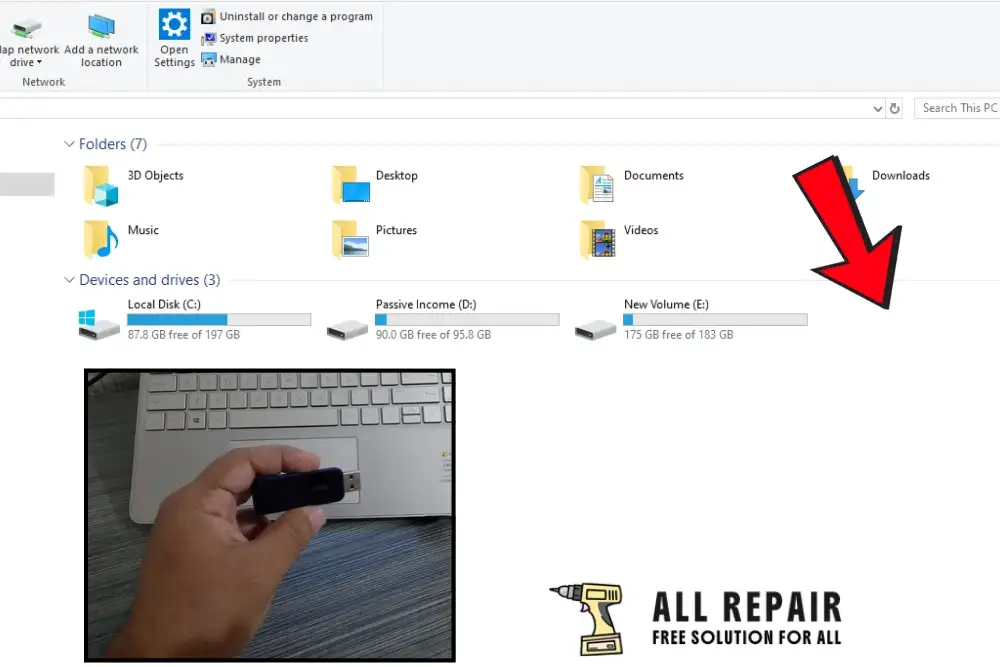
USB flash drive not showing in File Explorer? Learn how to fix connection issues by assigning a drive letter or updating drivers in Disk Management.
When your usb flash drive isn’t showing in file explorer, it’s usually because the computer hasn’t assigned it a drive letter or the device driver is outdated.You can typically fix this by opening the Disk Management tool, right-clicking the drive, and selecting “Change Drive Letter and Paths” to manually assign a new letter to the partition.
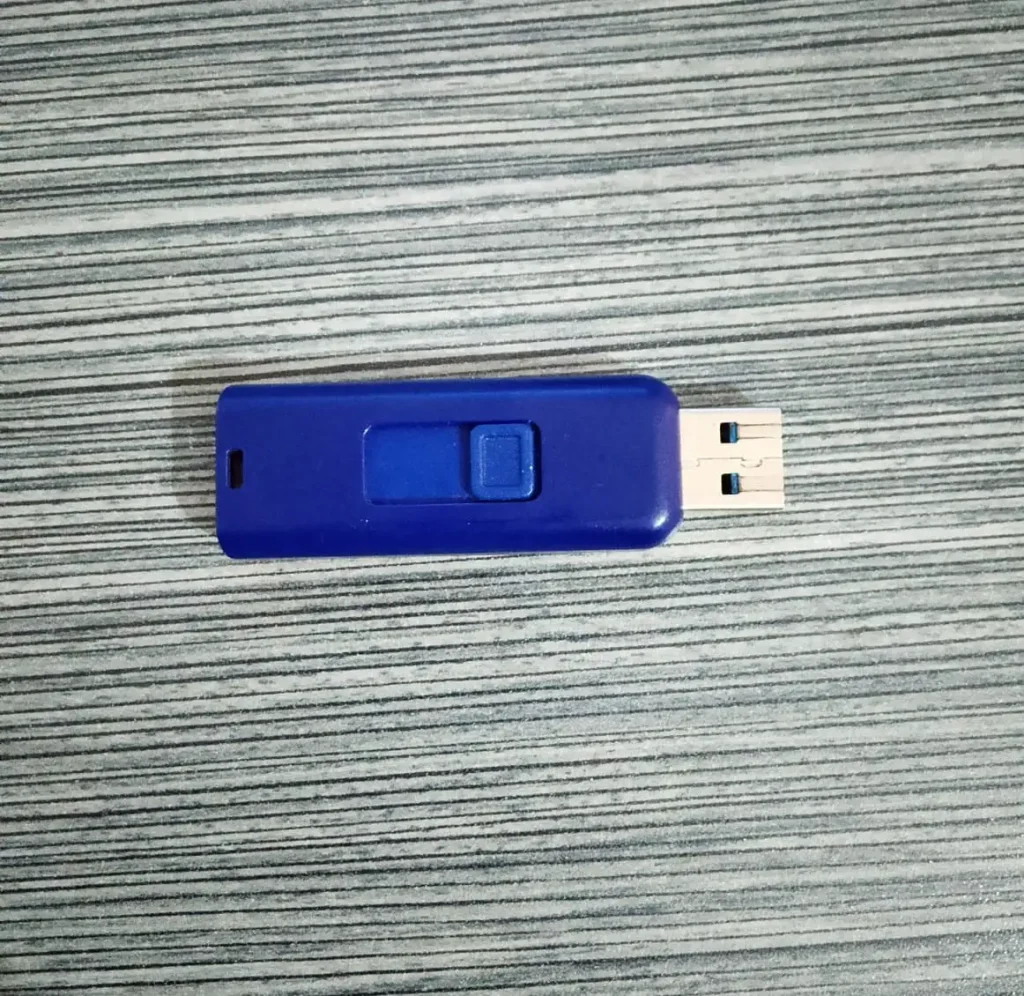
Why your flash drive isn’t showing
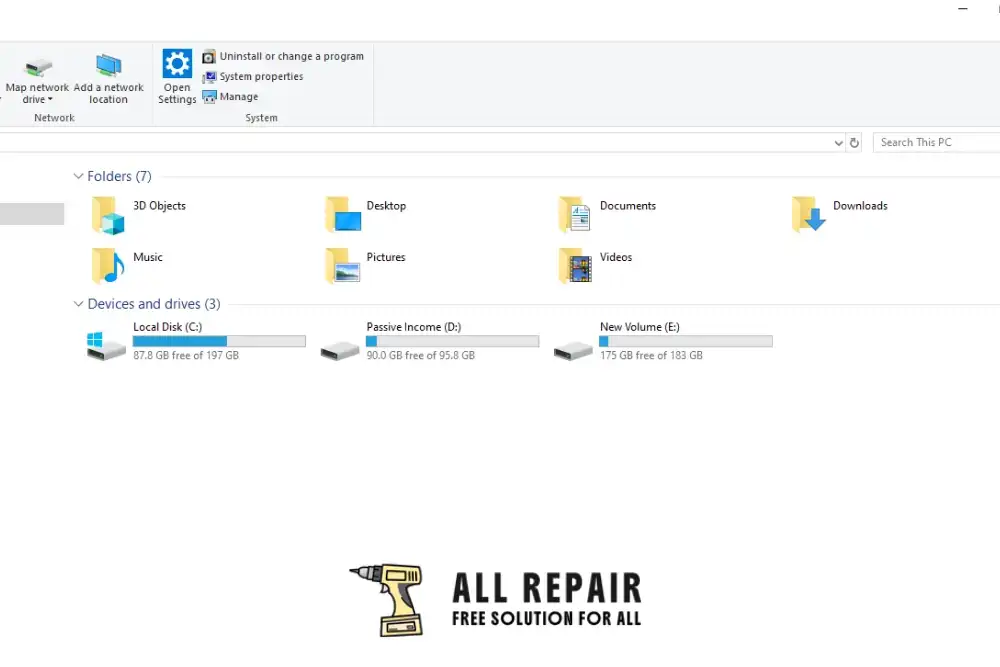
When a device isn’t appearing as expected, the issue often stems from simple hardware conflicts or minor software glitches that block the operating system from reading the drive. Before you try complex settings, check these common points to see if the drive is physically communicating with your computer.
- Loose connection: The port might be dirty or damaged, or the drive isn’t pushed in all the way.
- Driver conflict: The software that tells Windows how to talk to your hardware has become corrupted.
- Missing drive letter: Windows sees the storage, but it hasn’t given it a name like “E:” or “F:” so it can’t display it.
- File system error: The drive might be formatted with a system your computer doesn’t support, such as a damaged partition table.
- Power delivery: Some drives require more power than a front-panel USB port can provide, especially on desktop computers.
You May Find This Helpful: Can You Refill Printer Toner?
How to Manually Assign a Drive Letter
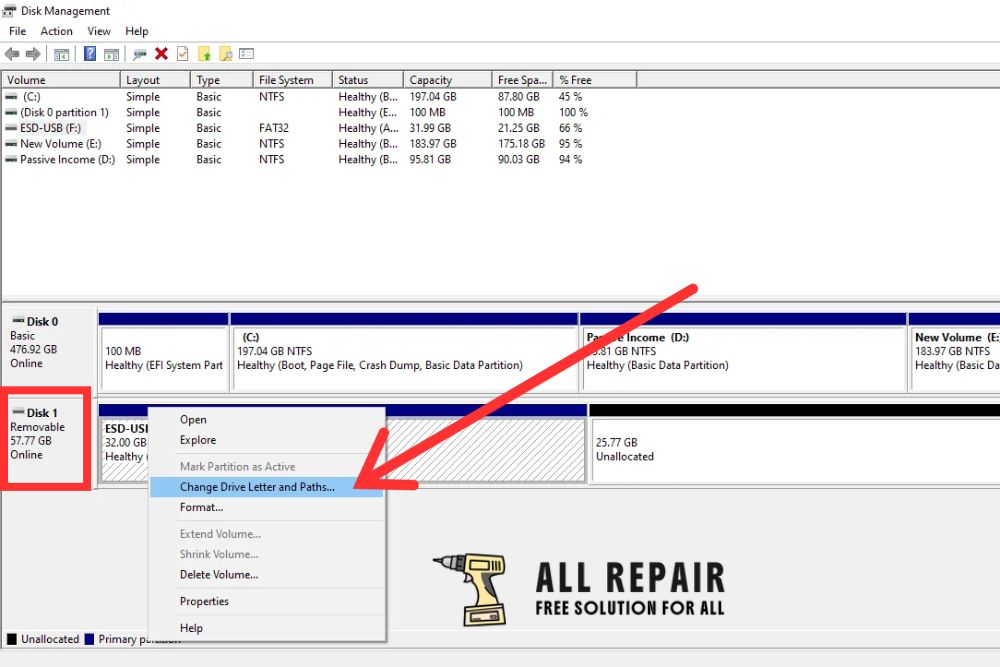
If your device appears in Disk Management but remains invisible in your main file list, assigning a new letter is the most effective way to restore access. Follow these steps to force Windows to recognize the partition:
- Open Disk Management: Right-click the Start button and select “Disk Management” from the menu that appears.
- Locate your drive: Look for a disk labeled “Removable” that matches the storage size of your flash drive.
- Select the volume: Right-click the blue bar representing the partition on that disk.
- Change the letter: Click “Change Drive Letter and Paths,” then select “Add” or “Change.”
- Assign a new letter: Pick an unused letter from the dropdown menu and click “OK” to save the change.
Once you perform this, check your folder view again. The drive should appear immediately under “This PC” alongside your other local disks.
You May Find This Helpful: How to Back Up Files to an External Hard Drive
Troubleshooting Through Device Manager
If the drive doesn’t show up in Disk Management, your computer might not be recognizing the hardware at all. You can use the built-in Microsoft Learn hardware troubleshooting guide to reset the connection. This process forces Windows to scan for changes and reinstall the basic communication software for your port.
| Symptom | Likely Cause | Recommended Action |
|---|---|---|
| Drive lights up, but no sound | Connection issue | Try a different USB port |
| “USB not recognized” error | Driver corruption | Uninstall device in Device Manager |
| Disk shows as “Unallocated” | Corrupt partition | Create a new simple volume |
| Disk doesn’t appear at all | Hardware failure | Test on a different computer |
If you see an “Unknown Device” or a yellow warning triangle in the list, right-click it and choose “Uninstall device.” Unplug the drive, wait 10 seconds, and plug it back in. Windows will automatically detect the hardware and attempt to reload the correct software for it.
When to Replace the Hardware?
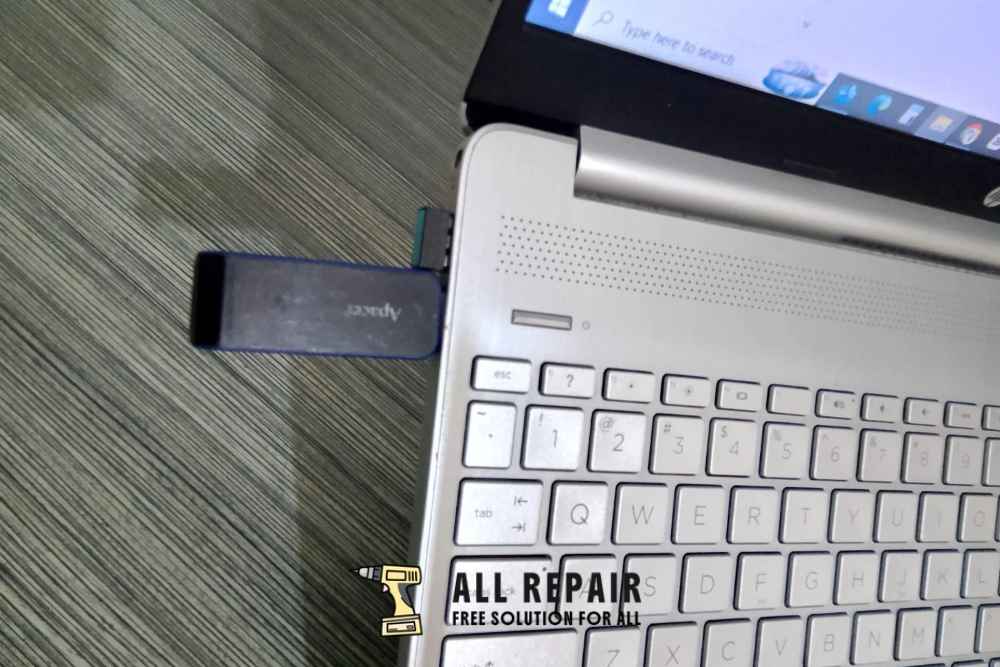
Sometimes a flash drive reaches the end of its life, and no amount of software configuration will bring it back. If you have tried the drive on three different computers and it fails to show up on any of them, the internal memory chip has likely suffered a permanent failure. Don’t waste time trying to reformat a drive that won’t hold a stable connection.
Tip: If the drive feels physically hot to the touch when you plug it in, stop using it immediately. This indicates a short circuit that could potentially damage the USB port on your computer.
If you have important files on a drive that’s completely dead, professional data recovery is your only option. However, these services are expensive and often cost significantly more than the value of the device itself. For most users, once a drive stops responding to basic Windows commands, it’s time to purchase a new one and restore your data from your latest backup.
Frequently Asked Questions
Will reformatting the drive fix it if it’s not showing?
Reformatting will only work if the computer can actually see the drive in Disk Management. If the system doesn’t detect the hardware at all, formatting isn’t possible because you can’t access the drive’s file system to wipe or repair it.
Can a faulty USB port cause this problem?
Yes, a faulty or dirty port is a very common cause for detection errors. Try moving the drive to a different port on your computer, preferably one on the back of the case if you’re using a desktop, as those connect directly to the motherboard.
Is it safe to use third-party partition software?
It’s generally safe to use well-known disk management software, but it’s usually unnecessary for basic flash drive issues. Windows has built-in tools that are designed to handle these specific tasks without the risk of installing extra software that might contain hidden advertisements or unwanted bloatware.
Conclusion
Start by testing your drive in a different computer to rule out a broken USB port on your current machine. If the drive still doesn’t appear anywhere, the hardware is likely dead and you’ll need to replace it to get back to work.