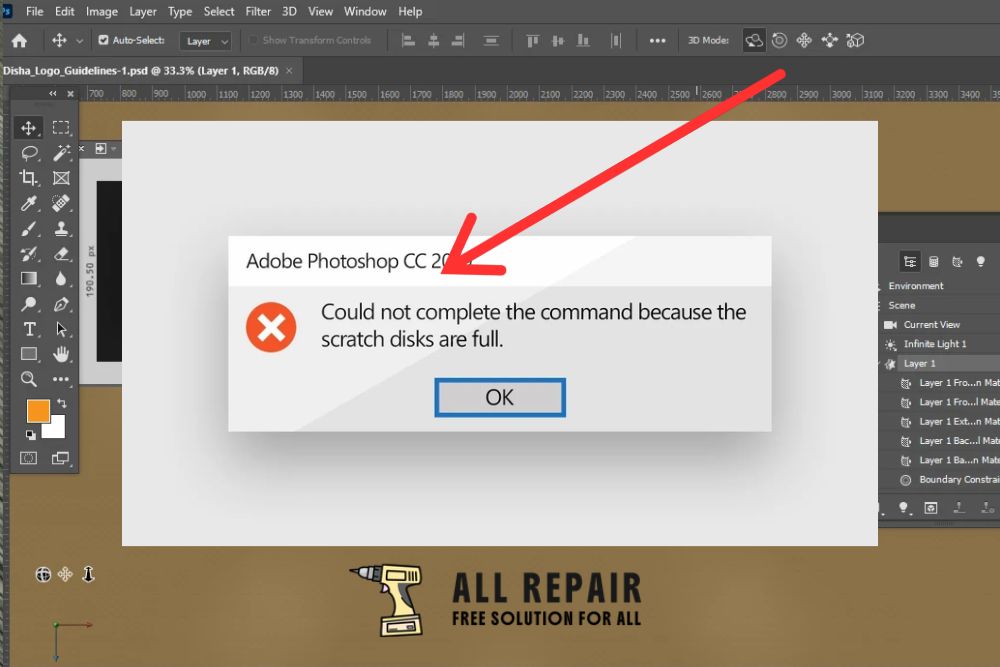
Most of the time this week I got this message in my Adobe photoshop while working with some big files, “Could not complete the command because the scratch disks are full”. I was searching the real solution on the youtube but there are lots of other stuff in there I did not find helpful.
After researching for an hour I got the real solution of the problem. So I thought why not share the real solution with you guys.
When you see an error saying that the scratch disk is full in Adobe Photoshop CC, it means your computer’s hard drive has run out of space to store the temporary files the program creates while you work.
You can solve this by clearing space on your primary drive, changing the scratch disk location to a drive with more capacity, or increasing the amount of RAM available to the software. So, let’s find out how to fix scratch disks full in Photoshop.
How to Fix a Full Scratch Disk
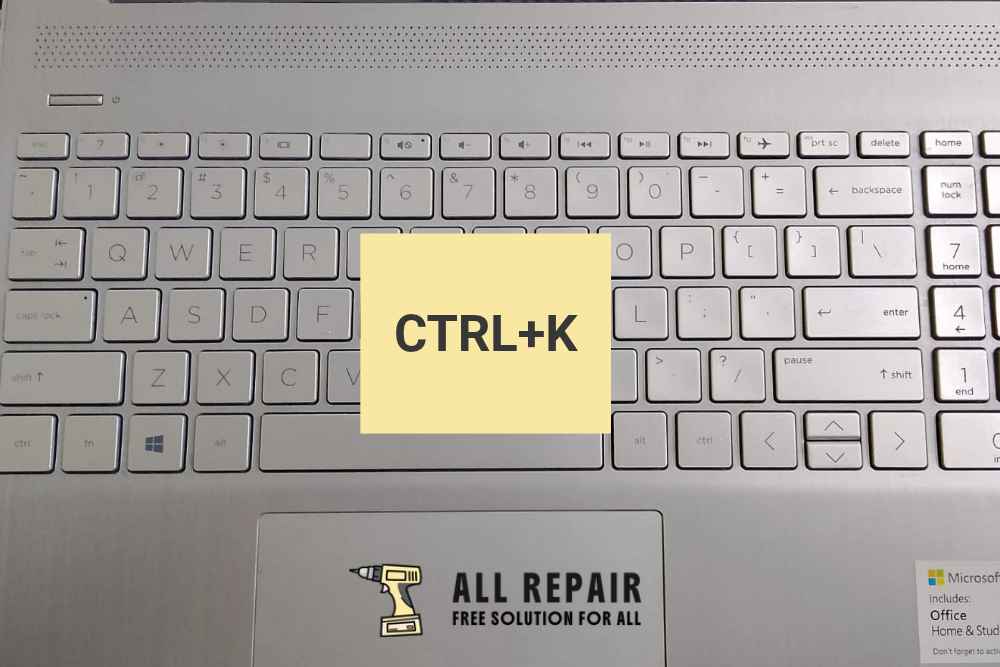
If you can’t open your files, you must free up space immediately or tell the application to use a different storage location. Follow these steps to change your settings and clear the error:
Open the preferences menu
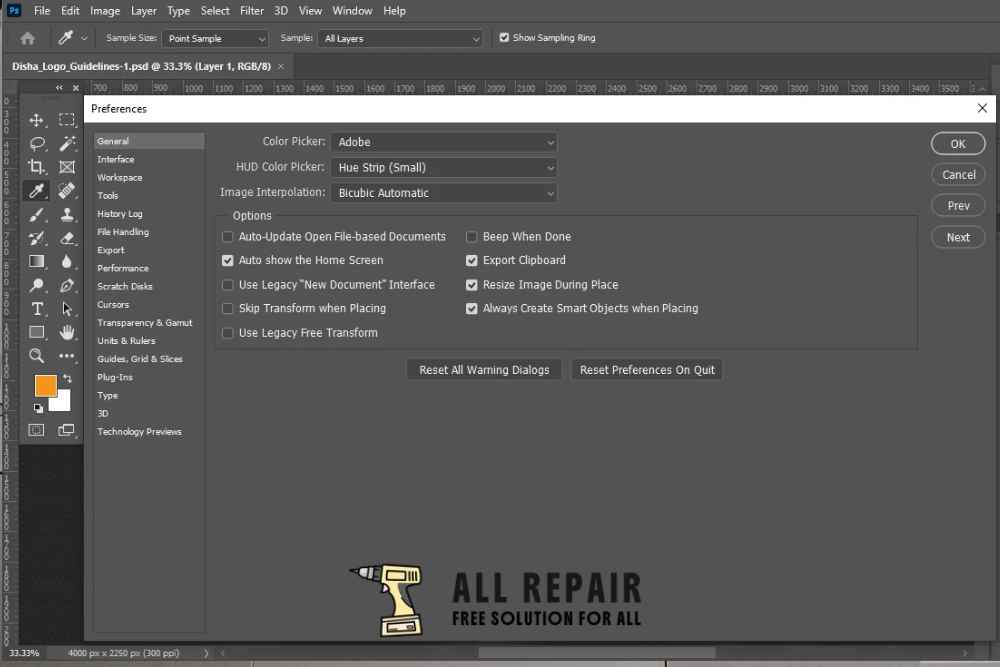
Launch the software and press Ctrl+K on Windows or Command+K on macOS to open the general settings.
Navigate to the scratch disk tab
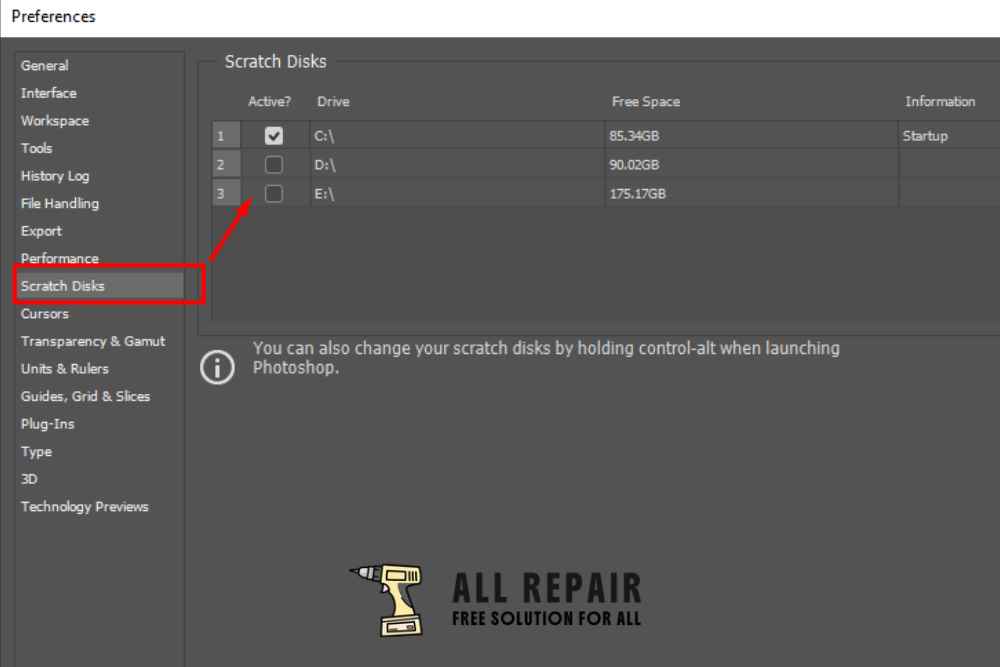
Look for the option labeled “Scratch Disks” in the left-hand sidebar of the window.
Select a new drive
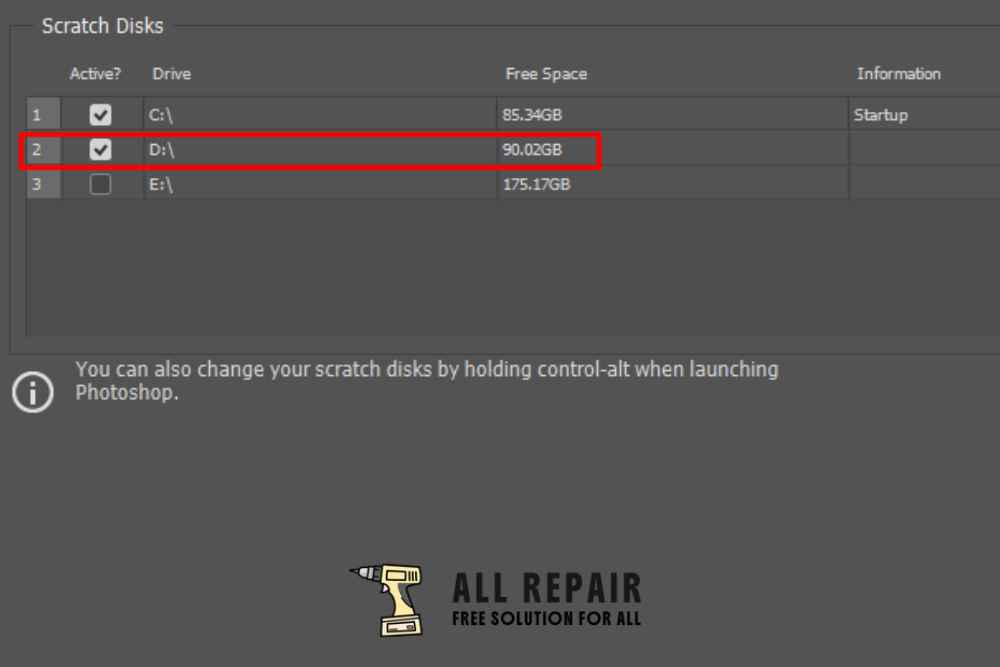
You’ll see a list of available hard drives; you can see mine that there is only one Drive is clicked, check the other box for a drive that has at least 50GB of free space. I checked D drive with 90 gigabytes of free spaces as you can see in the screenshot.
Change the priority of scratch disks
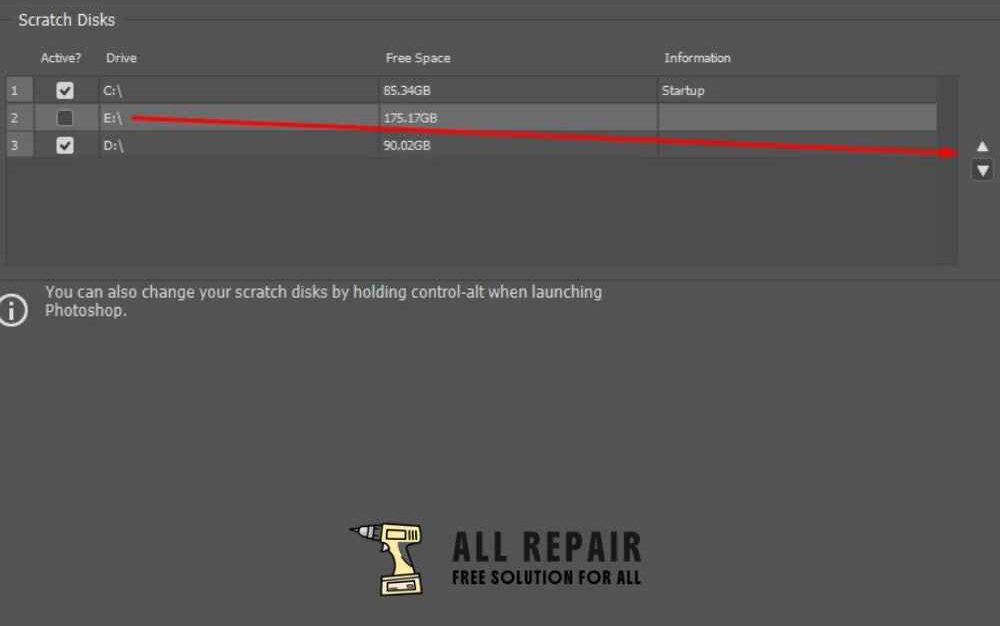
If you have multiple drives, use the arrow buttons to move the drive with the most space to the top of the list. Priority of scratch disks, See previous screenshot, D drive was in the middle now it’s in below of E drive.
Restart the application. Close the program completely and reopen it so that the new settings take effect and the temporary files are written to the correct location.
Tip: Always keep at least 20% of your total hard drive capacity free to ensure the operating system and applications have room to manage temporary data efficiently.
Managing Memory and Storage Requirements
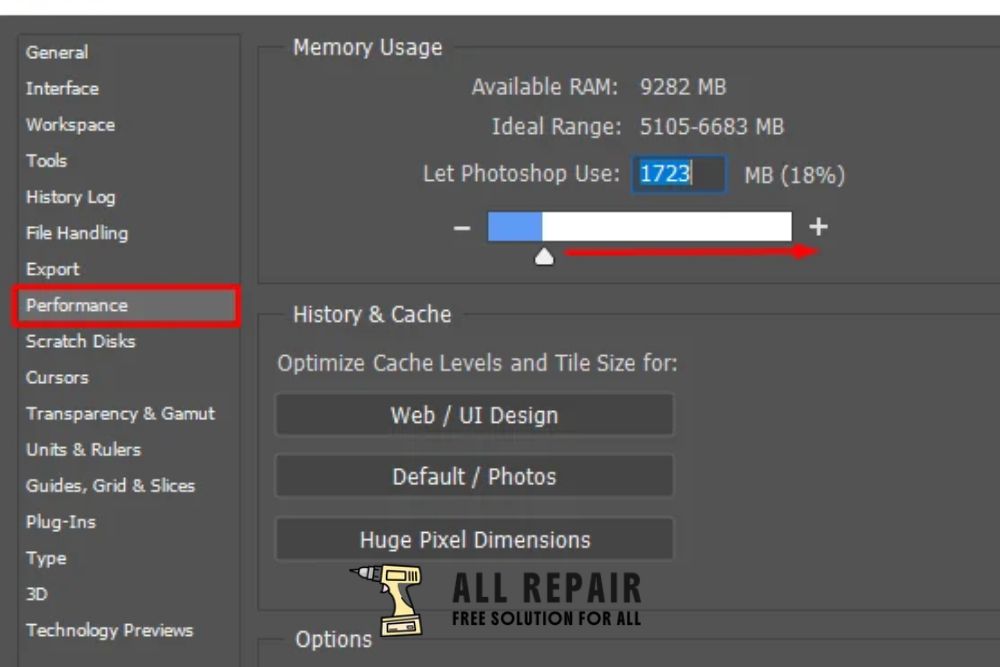
The amount of space you need depends on the size and complexity of your projects. High-resolution images with many layers generate massive temporary files that can quickly overwhelm a small solid-state drive. You can check your current memory usage and disk settings to prevent future crashes.
You would like to apply No. 3 immediately for a smooth software operation. This screenshot explains it all for how to increase your ram allocation for a smooth Photoshop operation in your computer.
| Action | Impact on Performance | Recommended Change |
|---|---|---|
| Clear Cache | Reduces immediate disk load | Purge all history and cache |
| Increase RAM | Decreases reliance on disk | Allocate 70% of total system RAM |
| Add SSD | Improves read/write speeds | Use a dedicated NVMe drive |
| Delete Temp Files | Clears orphaned data | Remove files starting with ~PST |
If your system drive has less than 20GB of free space, the application will struggle to write scratch files, causing sudden freezes during saves. Check your available headroom before starting a session. If the free space drops below 10% of total capacity, move your scratch disk to a separate physical drive to prevent bottlenecking.
Many users mistakenly keep their scratch disk on the same partition as their operating system. This forces the drive to handle system background tasks and heavy application data simultaneously, which slows down every operation. If your machine has two drives, always assign the scratch disk to the one without the operating system.
If you continue to face issues, you might need to upgrade your hardware. Adding more physical RAM is the most effective way to stop the program from using the hard drive as a substitute for memory. 16GB of RAM is the recommended minimum for modern workflows involving large files or complex filters.
You May Find This Helpful: USB Flash Drive Not Showing in File Explorer
Troubleshooting Adobe Photoshop Scratch Disk Full Errors
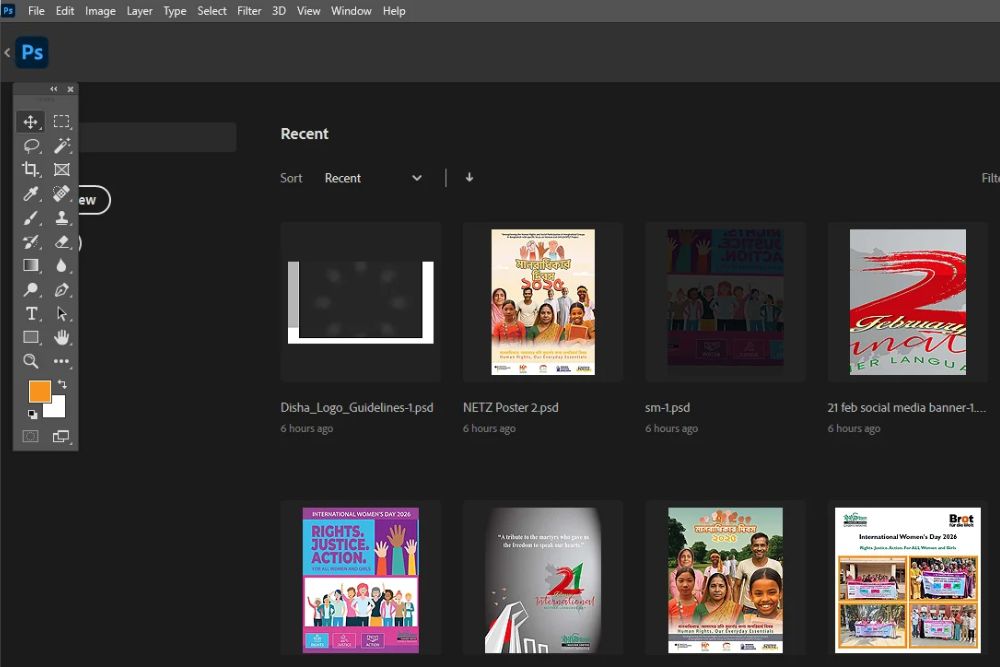
Sometimes the error persists even after you have cleared space. This usually happens because temporary files from a previous session didn’t delete themselves properly.
Can I delete temporary files from Photoshop CC? Yes you can delete it by following the below steps.
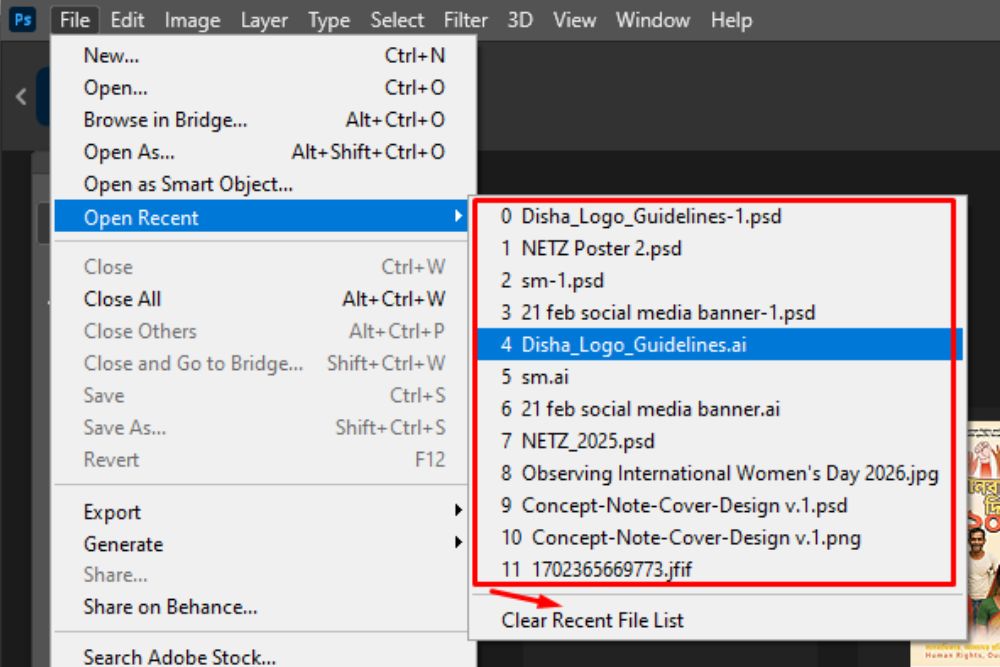
Go to File- Open recent- Clear recent file list option as you can see in the screenshot.
FAQs About how to fix scratch disk full photoshop
Why does my disk still show as full?
The program might be trying to save to a hidden partition or a drive that’s currently locked by the operating system. Check that your drive isn’t set to “Read Only” and that you have full administrative permissions to write files to the root directory.
Can I delete temporary files manually?
Yes, you can search your drive for files starting with “~PST” or ending in “.tmp” while the software is closed. These files are usually safe to delete, but ensure you have saved all your active work before closing the application to avoid losing unsaved progress.
Does file resolution affect the scratch disk?
Yes, doubling the resolution of an image quadruples the file size and the temporary space required to process it. If you work with print-quality files, you should always keep your scratch disk on a secondary drive that’s separate from your operating system’s main drive.
What is the minimum space required?
You should have at least 20GB of free space on your drive for the software to function properly. However, if you work with large design projects, 100GB or more is often necessary to avoid frequent interruptions during heavy editing tasks.
Should I use an external hard drive?
You can use an external drive, but ensure it’s connected via a high-speed interface like USB 3.0 or Thunderbolt. Using a slow connection will cause significant lag and may lead to performance errors while you’re moving between tools or saving large files.
Will reinstalling the software help?
Reinstalling is rarely the solution for a full disk error because the problem is related to your hardware capacity rather than the program files themselves. Focus on clearing your local storage or updating your memory settings before attempting a reinstallation.
Conclusion
Check your drive’s free space in your operating system’s file manager to confirm the actual space remaining. If you find your primary drive is almost full near capacity, move your project files to a secondary storage device and update your scratch disk preferences to point toward that drive.